4. Input Fields
This chapter explains the input fields available in OsdagBridge. The input fields allow users to define the project configuration and provide the parameters required for analysis and design.
4.1 Basic Inputs
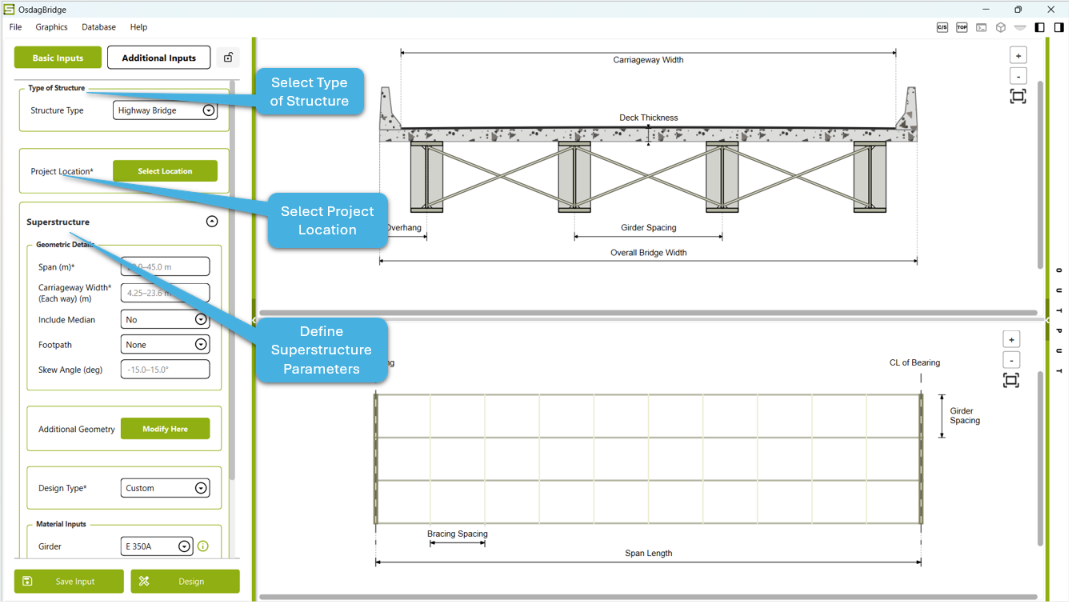
The Basic Inputs section provides the primary project and structural parameters required to define the bridge configuration. These inputs establish the bridge type, project location, principal geometry, design configuration, and material properties used in the subsequent analysis and design.
The Basic Inputs interface is organized into the following sections:
- Type of Structure
- Project Location
- Superstructure
4.1.1 Type of Structure
The Type of Structure field is used to define the structural category of the bridge project.
Select the appropriate structure type from the available options in the dropdown menu. The selected structure type determines the configuration and input parameters presented in the application.
The Type of Structure field currently provides Highway Bridge as the available structure type.
4.1.2 Project Location
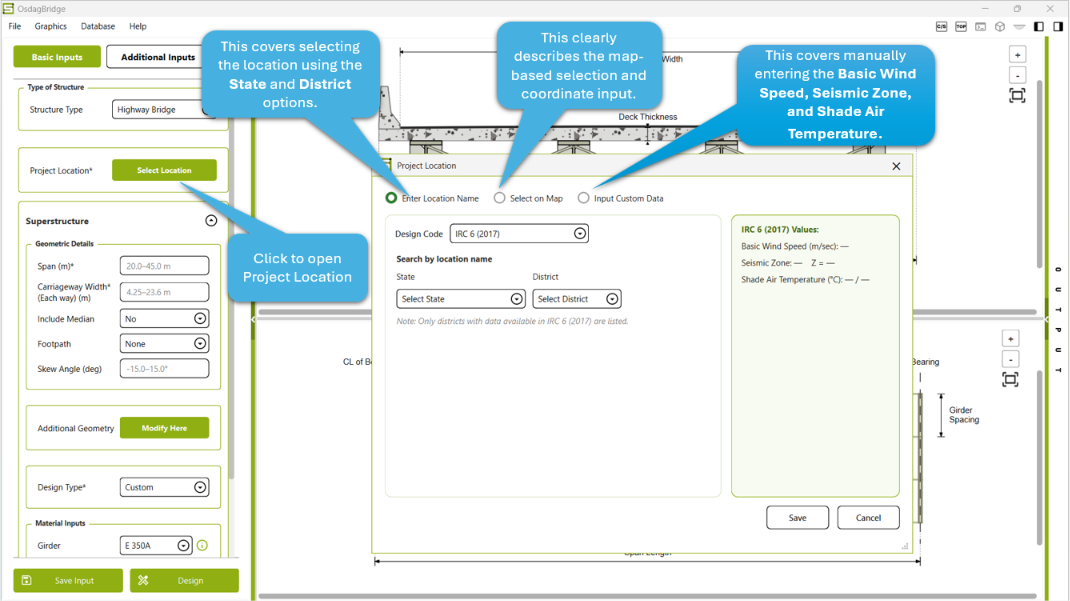
The Project Location field is used to define the geographical location associated with the bridge project.
Click Select Location and specify the required project location. The selected location becomes part of the project configuration.
The available project locations are limited to the districts for which data is provided in IRC:6-2017.
4.1.3 Superstructure
The Superstructure section contains the principal inputs required to define the geometry, design configuration, and material properties of the bridge superstructure.
The section is divided into the following input groups:
Geometric Details
The Geometric Details group defines the principal geometric characteristics of the bridge.
| Input | Description |
|---|---|
| Span (m) | Specifies the bridge span length in metres. |
| Carriageway Width (Each way) (m) | Specifies the carriageway width provided for each way of the bridge. |
| Include Median | Specifies whether a median is included in the bridge configuration. |
| Footpath | Specifies the footpath provision for the bridge. |
| Skew Angle (deg) | Specifies the skew angle of the bridge in degrees. |
Enter the required geometric parameters in the corresponding fields.
Additional Geometry
The Additional Geometry option provides access to supplementary geometric parameters required for defining the bridge configuration.
Click Modify Here to open the additional geometric input interface and provide the required parameters.
Design Type
The Design Type field provides two options for defining the design parameters:
- Optimized – uses the default design values provided by OsdagBridge.
- Custom – allows the user to specify the required design values.
Certain design parameters are non-editable and are predefined by the software.
Material Inputs
The Material Inputs section allows the user to specify the materials assigned to the primary bridge components.
The available material fields include:
| Component | Description |
|---|---|
| Girder | Specifies the material used for the girders. |
| Cross Bracing | Specifies the material used for the cross bracing. |
| End Diaphragm | Specifies the material used for the end diaphragms. |
| Deck | Specifies the material used for the bridge deck. |
For each component, the user can select an available material from the corresponding dropdown menu. Where required, Custom material properties can also be defined by the user.
4.2 Additional Inputs
The Additional Inputs section provides access to further geometric, structural, loading, and analysis/design parameters required to define the bridge configuration.
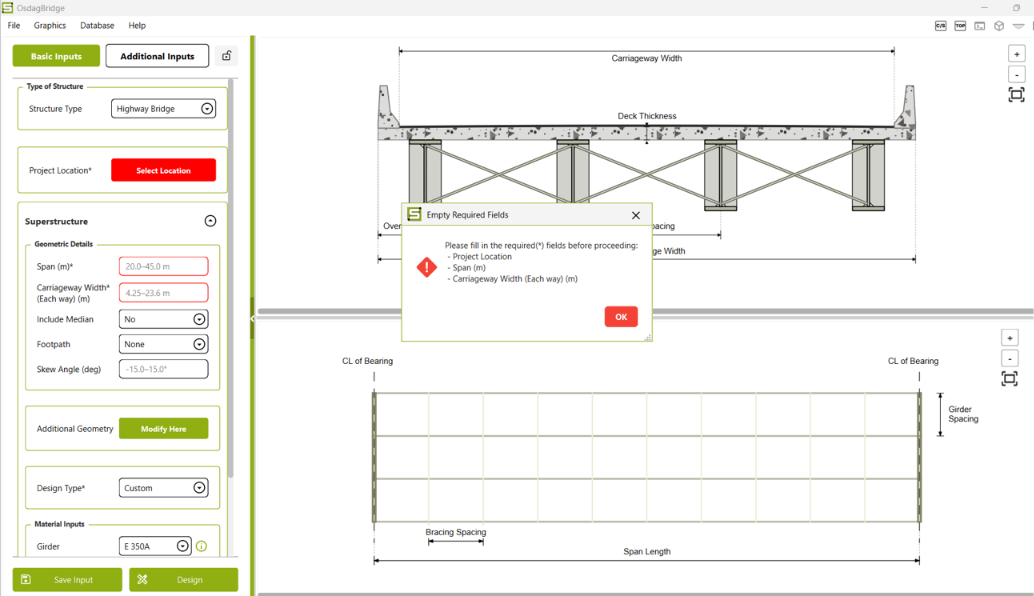
The Additional Inputs section can be opened only after all required fields in the Basic Inputs section have been completed. If any required field is left empty, the software displays a message identifying the fields that must be filled before proceeding.
The Additional Inputs window is organized into the following sections:
- Typical Section Details
- Member Properties
- Loading
- Analysis/Design Options
- Design Options (Cont.)
4.2.1 Typical Section Details
The Typical Section Details tab defines the principal geometric parameters of the bridge cross-section. Some parameters are user-editable, while others are automatically calculated based on the selected basic inputs.
Girder and Bridge Geometry
The following parameters are available:
| Parameter | Description |
|---|---|
| No. of Girders | Specifies the number of longitudinal girders provided in the bridge. |
| Girder Spacing (m) | Defines the spacing between adjacent girders. The value is updated based on the selected number of girders and may be modified by the user. |
| Deck Overhang Width (m) | Defines the deck width extending beyond the outermost girder. The value is automatically updated based on the selected girder arrangement and spacing. |
| Overall Bridge Width (m) | Represents the total bridge width and is automatically updated based on the selected girder arrangement and spacing. |
The Girder Spacing, Deck Overhang Width, and Overall Bridge Width are interrelated. Changes to the girder arrangement may automatically update the corresponding geometric values.
Deck Details
The Deck Details section contains parameters related to the bridge deck.
- Deck Thickness (mm): Specifies the thickness of the bridge deck and can be modified by the user.
- Footpath Width (m): Specifies the width of the footpath.
- Footpath Thickness (mm): Specifies the thickness of the footpath.
Footpath Width and Footpath Thickness become editable only when a footpath is selected under Footpath in the Geometric Details section of the Basic Inputs.
Crash Barrier
The Crash Barrier tab provides options for defining the crash barrier used in the bridge configuration.
- The Type of crash barrier can be selected from the available options.
- The associated properties are provided according to the selected crash barrier type.
Median
The Median section allows the user to define the properties of the median provided on the bridge deck.
The available parameters include:
| Parameter | Description |
|---|---|
| Type | Specifies the type of median. The available option can be selected from the dropdown list. |
| Material Density (kN/m³) | Specifies the density of the median material. |
| Width (m) | Defines the width of the median. |
| Height (m) | Defines the height of the median. |
| Area (m²) | Displays the cross-sectional area of the median. |
| Load (kN/m) | Displays the corresponding load of the median per unit length. |
The Median section is available for editing when Include Median is set to Yes under Geometric Details in the Basic Inputs section.
Railing
The Railing section allows the user to define the properties and loading associated with the bridge railing.
The available parameters include:
| Parameter | Description |
|---|---|
| Type | Specifies the type of railing. The available option can be selected from the dropdown list. |
| Width (m) | Defines the width of the railing. |
| Height (m) | Defines the height of the railing. |
| Mode | Specifies the mode used for defining the railing load. |
| Load (kN/m) | Displays the corresponding railing load per unit length. |
The Railing section is available for editing when a Footpath is selected under Geometric Details in the Basic Inputs section.
Wearing Course
The Wearing Course tab provides parameters for defining the wearing course over the bridge deck.
The available inputs include:
- Material: Specifies the material used for the wearing course.
- Density (kN/m³): Specifies the density of the selected wearing-course material.
- Thickness (mm): Specifies the thickness of the wearing course.
4.2.2 Girder Details
The Girder Details section allows users to define the geometric and structural properties of the bridge girders. The section provides controls for selecting individual girders, defining their section parameters, specifying support and restraint conditions, and viewing the resulting section properties.
Girder Overview
The Girder Overview panel allows the user to select a girder and view its corresponding span information.
- Select Girder: Select the girder to be modified from the available girders.
- Total Span (m): Displays the total span of the selected girder.
- Apply changes to exterior girders: Applies the applicable girder changes to the exterior girders.
Section Inputs
The Section Inputs panel provides the parameters required to define the girder section.
| Parameter | Description |
|---|---|
| Member ID | Identifies the girder member being defined. |
| Type | Specifies the girder type, such as welded. |
| Symmetry | Defines the symmetry condition of the girder section. |
| Total Depth, d (mm) | Specifies the overall depth of the girder section. |
| Width of Top Flange, bfw (mm) | Defines the width of the top flange. |
| Top Flange Thickness, tf (mm) | Defines the thickness of the top flange. |
| Width of Bottom Flange, bfb (mm) | Defines the width of the bottom flange. |
| Bottom Flange Thickness, tb (mm) | Defines the thickness of the bottom flange. |
| Web Thickness, tw (mm) | Defines the thickness of the girder web. |
| Support Type | Specifies the support condition of the girder. |
| Support Width (mm) | Defines the width of the support. |
| Torsional Restraint | Specifies the torsional restraint condition of the girder. |
| Warping Restraint | Specifies the warping restraint condition. |
| Web Type | Specifies the web classification or configuration. |
The section geometry is displayed graphically in the Girder Preview, allowing the user to visually verify the defined section dimensions.
Section Properties
The Section Properties panel displays the calculated properties of the selected girder section. These include:
- Mass, M (kg/m)
- Sectional Area, A (m²)
- Second Moment of Area, Iz (m⁴)
- Second Moment of Area, Iy (m⁴)
- Radius of Gyration, rz (m)
- Radius of Gyration, ry (m)
- Elastic Modulus, Zz (m³)
- Elastic Modulus, Zy (m³)
- Plastic Modulus, Zpz (m³)
- Plastic Modulus, Zpy (m³)
- Torsion Constant, It (m⁴)
- Warping Constant, Iw (m⁶)
These properties are generated based on the defined girder section.
4.3 Initial CAD
The Initial CAD view provides a visual representation of the bridge configuration based on the entered project inputs.
Users can use this view to check the defined geometry and configuration before proceeding with the analysis and design process.
The initial CAD representation is intended to help users visually verify the project setup and identify any required changes to the inputs.