3. Home Screen
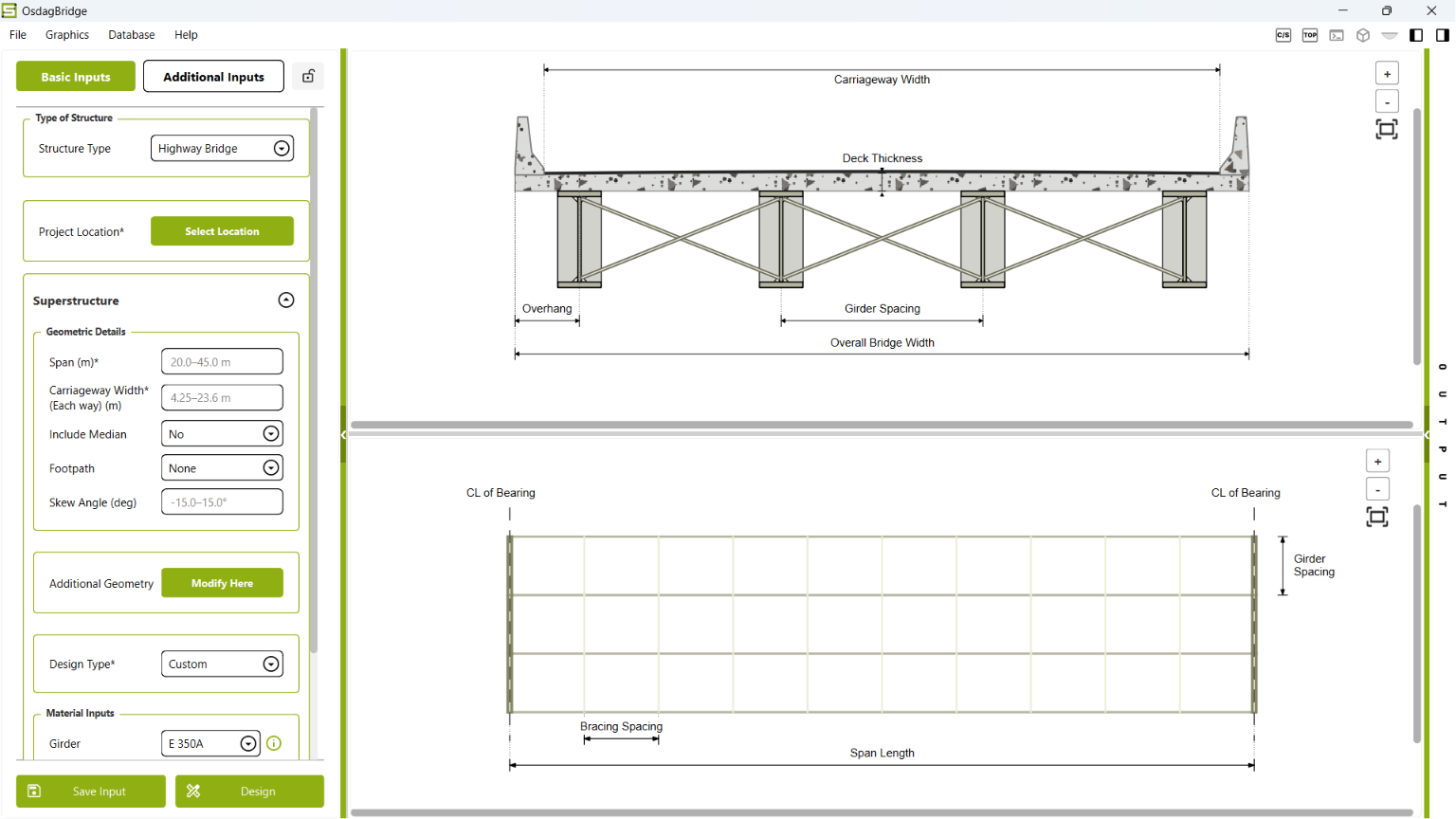
The Home Screen is the primary workspace of OsdagBridge. It provides access to the project configuration, input parameters, model visualization, analysis views, and design controls required to perform a bridge design.
The main interface and its components are described in the following sections.
3.1 Main Interface
The Main Interface provides a centralized workspace for defining the bridge project, entering design parameters, viewing the bridge model, and accessing analysis and design functions.
The interface is organized into the following major areas:
- Header and Navigation – Provides access to the main application menus and navigation controls.
- Project and Input Section – Allows users to define the project configuration and enter the required input parameters.
- Analysis and Visualization Section – Provides graphical views of the bridge model and analysis information.
- Help – Provides access to help and supporting resources.
3.1.1 Header and Navigation
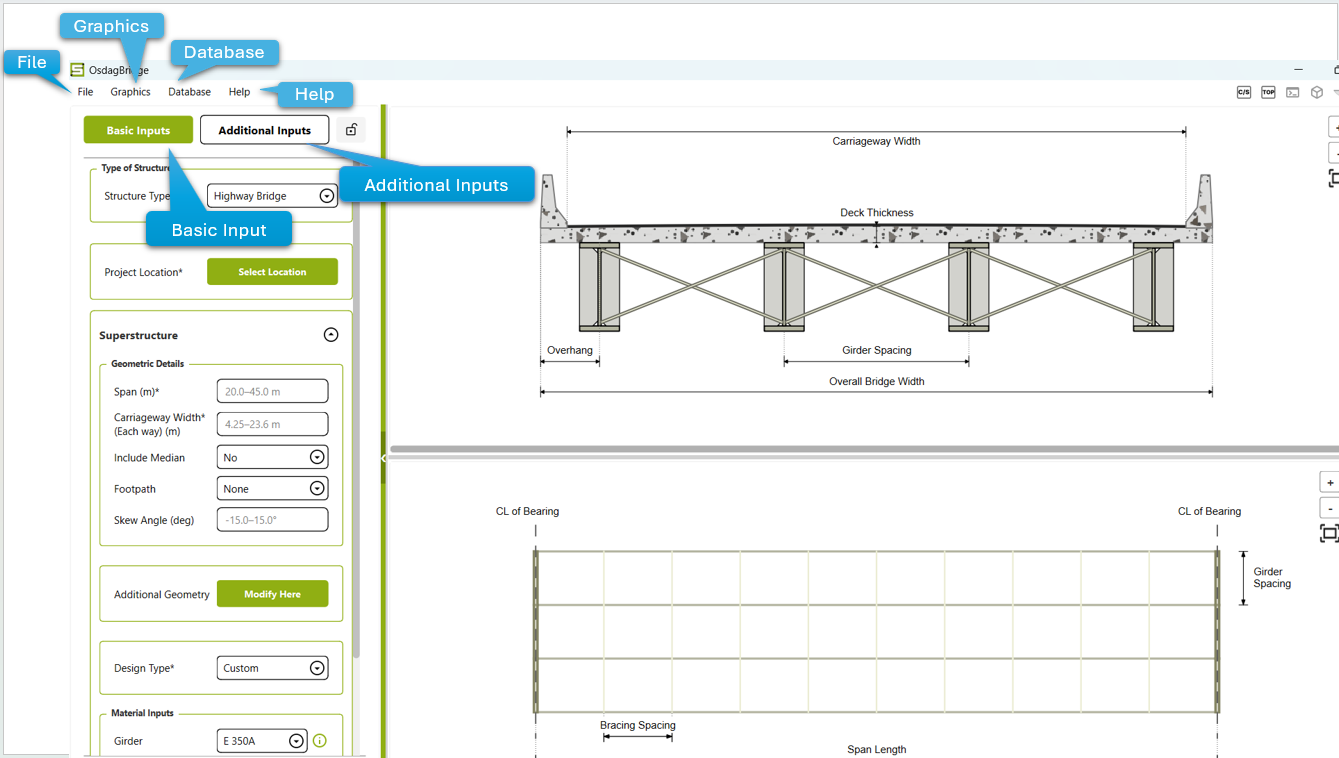
The Header and Navigation area is located at the top of the OsdagBridge interface. It provides access to the primary application menus and navigation controls used throughout the project workflow.
Application Menus
| Menu | Description |
|---|---|
| File | Provides options for managing project files and performing file-related operations. |
| Graphics | Provides controls for graphical visualization and viewing the bridge model. |
| Database | Provides access to the databases used by OsdagBridge. |
| Help | Provides access to help resources and supporting documentation. |
Input Navigation
The interface also provides the following input controls:
| Control | Description |
|---|---|
| Basic Inputs | Opens the primary input interface for defining project, geometric, design, and material parameters. |
| Additional Inputs | Opens the additional input interface for providing parameters required for detailed bridge modelling and design. |
The options available in the interface may vary depending on the selected project configuration and the current stage of the design workflow.
3.1.2 Project and Input Section
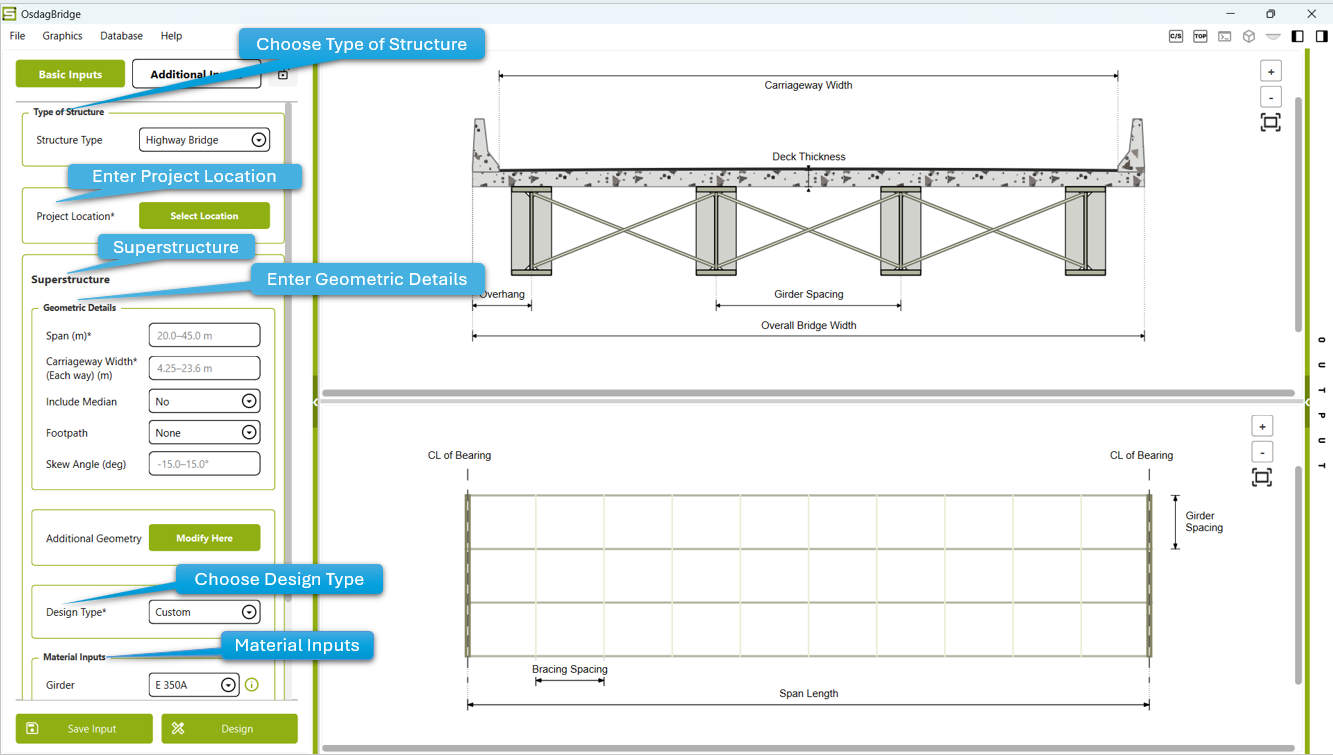
The Project and Input section is located on the left side of the application window. It is used to define the project information, bridge geometry, design type, and material inputs.
| Section | Purpose |
|---|---|
| Type of Structure | Specifies the type of bridge structure. |
| Project Location | Specifies the geographical location of the project. |
| Superstructure | Contains the main geometric and structural inputs for the bridge. |
| Geometric Details | Defines parameters such as span, carriageway width, median, footpath, and skew angle. |
| Additional Geometry | Provides access to additional geometric parameters. |
| Design Type | Specifies the design approach used for the project. |
| Material Inputs | Allows the user to select materials for different bridge components. |
The Material Inputs section also provides a green information (ⓘ) icon next to the applicable material fields. Selecting this icon opens the corresponding Material Information window, where the properties of the selected material can be viewed.
Input Lock/Unlock
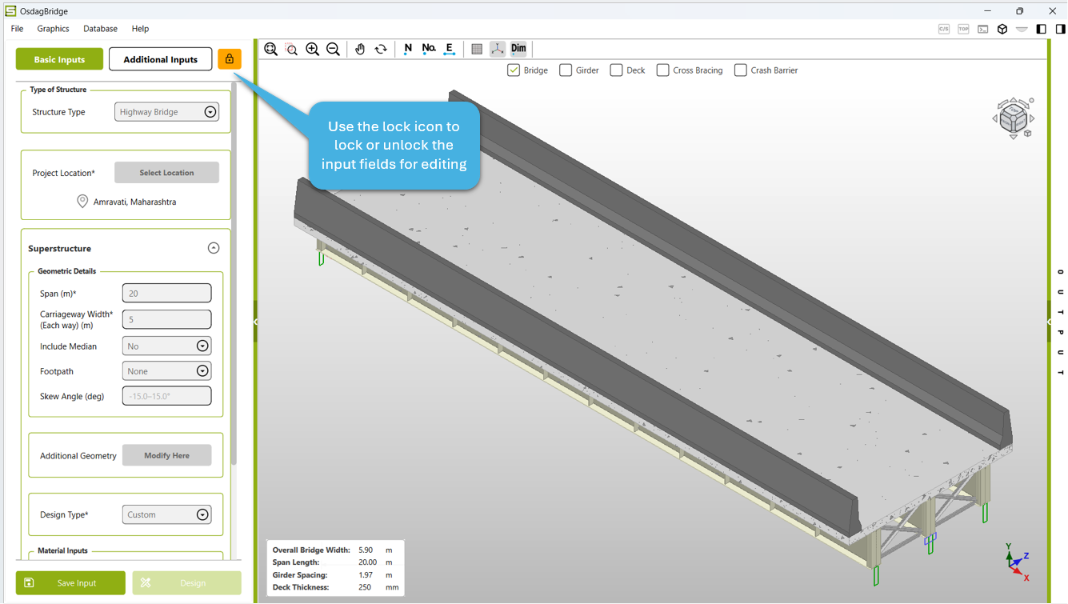
The lock/unlock control is used to control whether the project input fields can be edited.
- Locked: The input fields are locked and cannot be modified. This is useful after the design has been executed to prevent unintended changes to the defined input configuration.
- Unlocked: The input fields become editable, allowing the user to modify the project configuration.
If any input is modified after running the design, the input must be unlocked first. The design should then be executed again to update the analysis and design results based on the revised inputs.
3.1.3 Analysis and Visualization Section
The Analysis and Visualization Section provides the graphical interface for viewing the bridge model and accessing the available analysis and visualization results. It becomes particularly relevant after the required project and design inputs have been defined and the design process has been initiated.
Once the design process is completed, the central CAD area displays the bridge model based on the defined project parameters and design configuration. The visualization area allows users to inspect the structural arrangement and switch between different views of the bridge model and associated information.
The available visualization controls are provided through the toolbar located on the right side of the interface.
| View / Tool | Purpose |
|---|---|
| Cross-Section View | Displays the cross-sectional representation of the bridge, allowing the user to inspect the arrangement and relative positioning of the major structural components. |
| Top View | Displays the bridge model in plan view, providing an overall view of the bridge geometry and component arrangement. |
| Logs Window | Opens the application logs and displays information generated during the application workflow. This can be useful for reviewing process-related information and identifying issues during execution. |
| 3D CAD View | Displays the three-dimensional representation of the bridge model, allowing the user to inspect the overall structural configuration from different perspectives. |
| 3D Plots View | Opens the 3D plots interface for graphical representation of the relevant analysis or design information available in the application. |
Bridge Component Visibility
The CAD interface also provides controls for selectively displaying the major bridge components. These controls allow users to simplify the model view and inspect individual components or combinations of components as required.
The available component visibility options include:
- Bridge
- Girder
- Deck
- Cross Bracing
- Crash Barrier
Selecting or deselecting these components changes their visibility in the CAD view, enabling users to focus on the structural elements relevant to their inspection.
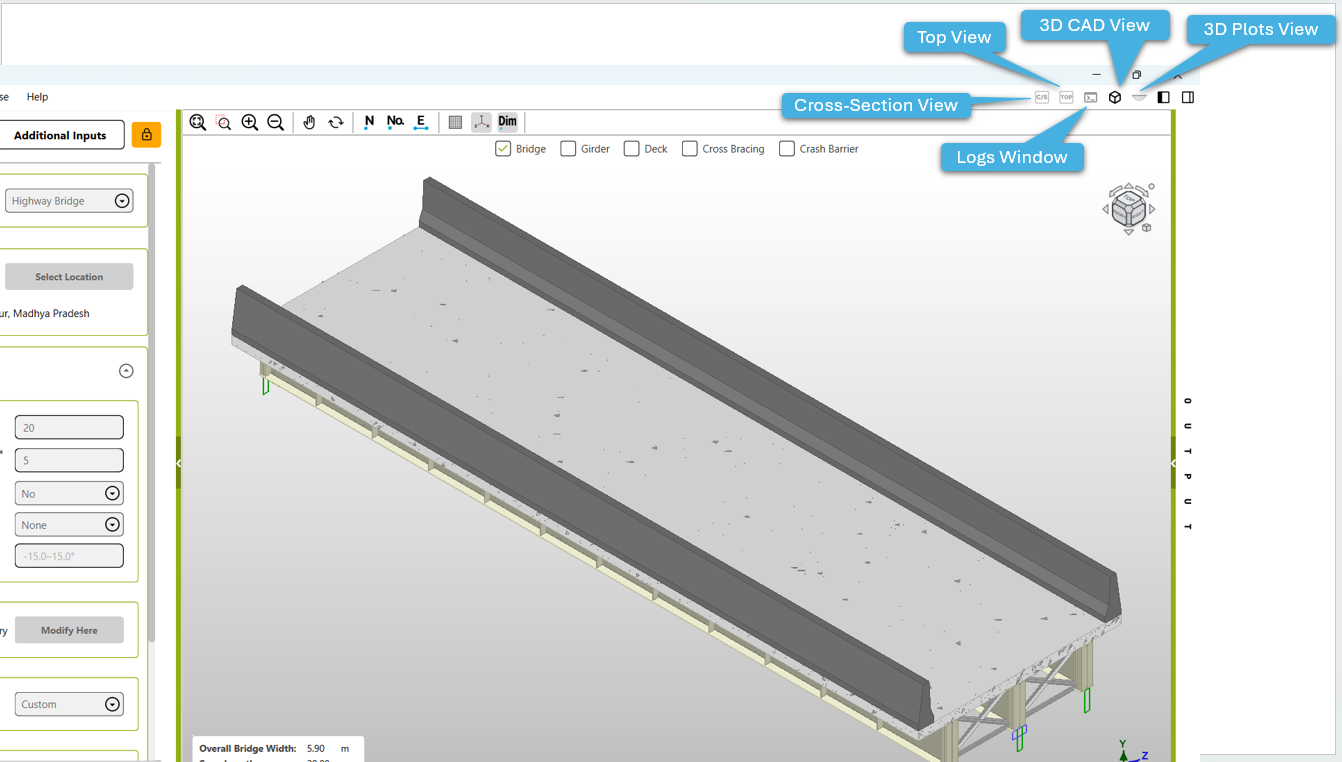
The available views and visualization options may vary depending on the selected project configuration and the stage of the design workflow.
The Analysis and Visualization Section therefore provides a convenient interface for inspecting the bridge geometry, reviewing different structural views, and accessing graphical analysis or design information without changing the project input parameters.
3.1.4 Help
The Help menu provides access to learning resources, design references, support services, application information, and update facilities. These options assist users in understanding the application, exploring available design examples, obtaining support, and keeping the software up to date.
The following options are available under the Help menu:
| Help Option | Purpose |
|---|---|
| Video Tutorials | Provides access to video-based tutorials that demonstrate the use of OsdagBridge and its available features and workflows. |
| Design Examples | Provides access to example designs that can be referred to for understanding the application workflow and design process. |
| Ask Us a Question | Provides a means for users to submit questions or seek assistance regarding the application and its usage. |
| About Osdag | Displays information about the Osdag application, including relevant application and version information. |
| Check For Update | Allows users to check whether a newer version or update of the application is available. |
These options can be accessed from the Help menu in the application header.
3.2 Workflow
The OsdagBridge workflow follows a structured sequence from defining the project and entering the required parameters to running the design, reviewing the results, and generating the design report.
The recommended workflow is:
- Create or define the project
- Enter the basic inputs
- Enter additional inputs, if applicable
- Save the input configuration
- Run the design
- Review the bridge model and analysis views
- Review the design results
- Generate and review the design report
Following this sequence helps ensure that the required project information and design parameters are defined before the design process is executed.
3.2.1 Create or Define the Project
Begin by opening OsdagBridge and defining the project information required for the bridge model.
Select the appropriate Structure Type and specify the Project Location using the available controls in the input section.
The selected project configuration determines the subsequent input parameters and design options available to the user.
The available input fields and design options may vary depending on the selected project configuration.
3.2.2 Enter Basic Inputs
Enter the required project, geometric, design, and material parameters in the Basic Inputs section.
The basic inputs define the primary characteristics of the bridge and form the basis for the subsequent modelling and design process.
Before proceeding, verify that:
- all mandatory inputs have been provided;
- the entered values are within the applicable ranges;
- the selected options are consistent with the project requirements; and
- the required material and design parameters have been specified.
Editable and Non-Editable Inputs : Input fields in Additional Inputs may be editable, software-defined, or dependent on the selected Design Type. If a field is not editable, review the selected Design Type or the relevant preceding inputs, where applicable.
3.2.3 Enter Additional Inputs (if applicable)
Use the Additional Inputs section to specify parameters required for detailed bridge modelling and design.
This section is applicable when the selected project configuration requires additional geometric, structural, loading, or other design parameters beyond those provided in the Basic Inputs section.
Enter or modify the available parameters according to the requirements of the project.
Review the entered values carefully before proceeding, as these parameters may directly influence the resulting bridge model and design.
The availability of Additional Inputs depends on the selected project configuration and design options.
3.2.4 Save the Input Configuration (Optional)
OsdagBridge provides the Save Input option to save the current project input configuration for future use.
Saving the input configuration is optional and is useful when the project needs to be reopened, modified, or reused later.
If required, select Save Input after entering the project parameters. Otherwise, proceed directly to the design process.
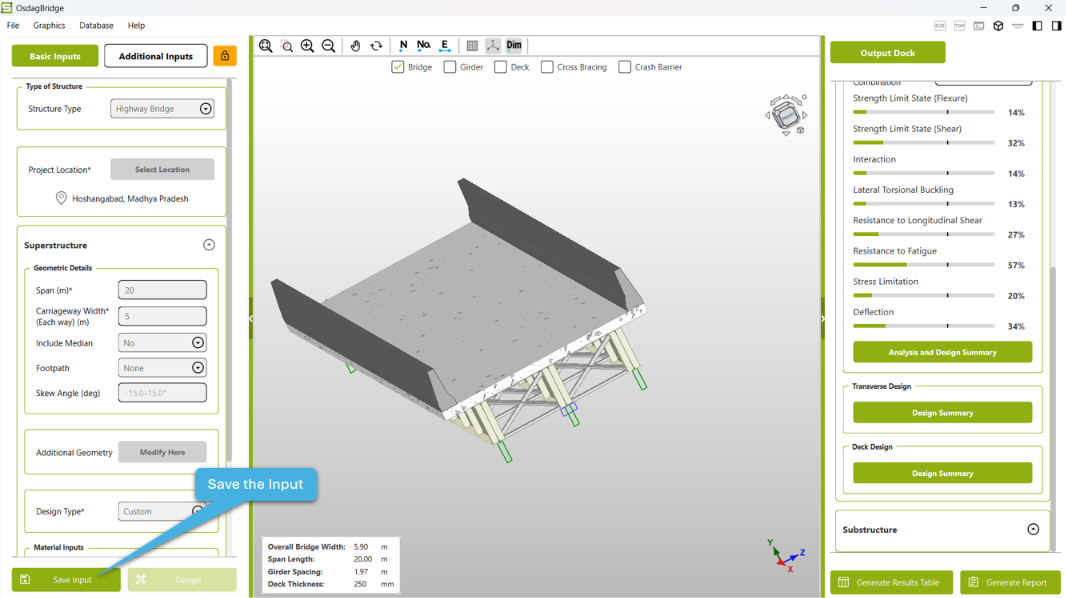
Saving the input configuration does not initiate the design process. The design must be run separately using the Design option.
3.2.5 Run the Design
After completing the required inputs, select Design to initiate the design process.
The application processes the specified project and design parameters and generates the corresponding design information.
Ensure that the required inputs have been reviewed before initiating the design process.
The design process may take some time depending on the project configuration and the computational operations performed by the application.
3.2.6 Review the Model and Analysis Views
After the design process is completed, review the generated bridge model using the available Analysis and Visualization tools.
The visualization area allows the user to inspect the bridge model through different views and examine the arrangement of the major structural components.
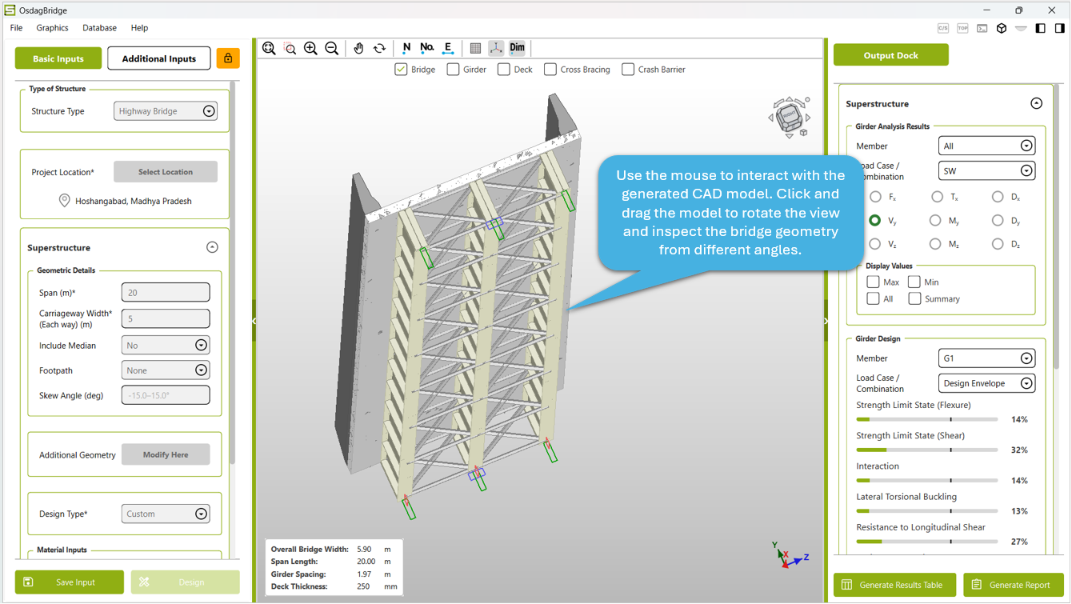
Available views may include:
- Cross-Section View
- Top View
- 3D CAD View
- 3D Plots View
- Logs Window
Use the available visualization controls to inspect the model and verify that the generated structural arrangement corresponds to the specified project inputs.
3.2.7 Review the Design Results
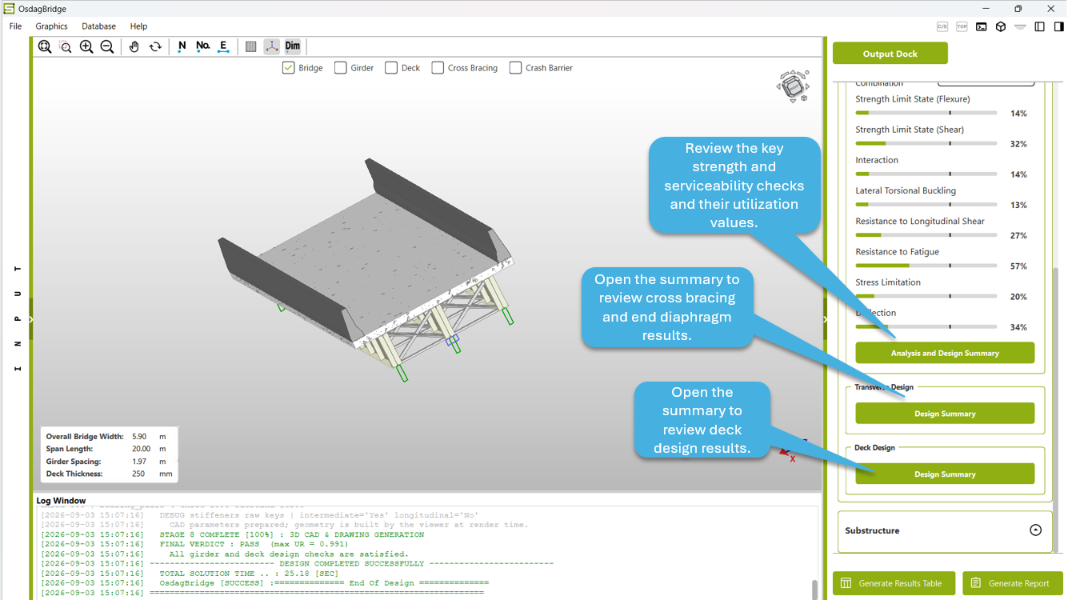
Review the design information generated by OsdagBridge after completion of the design process.
The design results should be examined to understand the outcome of the design and to identify any relevant design information or checks provided by the application.
Users should verify the reported results against the project requirements and review any messages or information provided by the application before proceeding to report generation.
3.2.8 Generate Table or Report
After reviewing the model and design results, OsdagBridge provides options to generate the required design output.
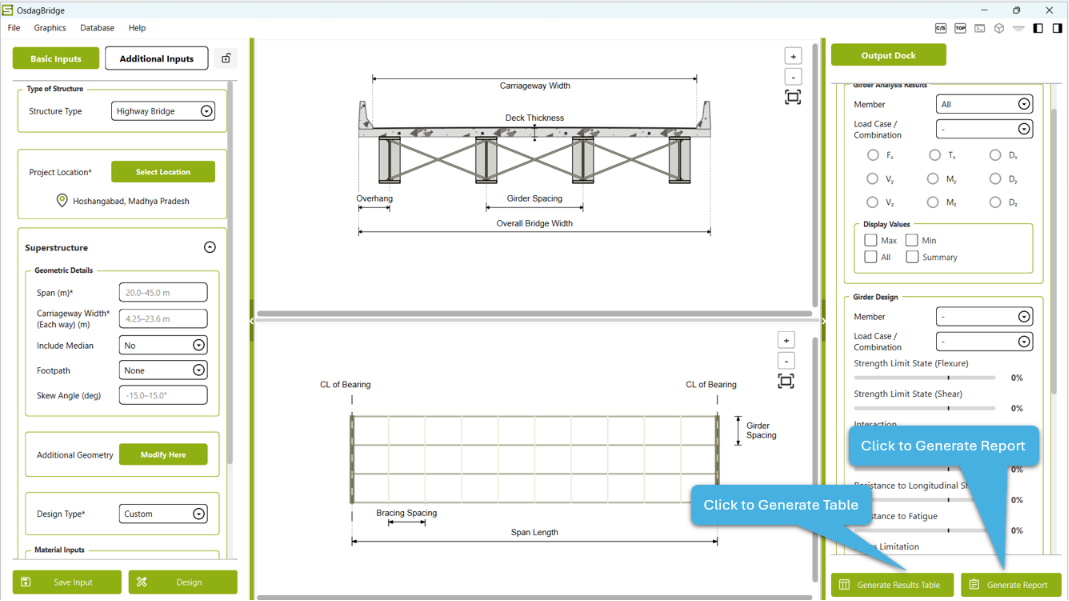
Generate Table
Use the Generate Table option to prepare a tabular representation of the relevant project and design results.
The generated table can be reviewed to quickly inspect the available design information and results.
Generate Report
Use the Generate Report option to generate a detailed design report.
The report provides a consolidated record of the project inputs, design information, calculations, and relevant results produced during the design process.
Before using the generated output, review it to ensure that the required project information and design results are correctly represented.
3.2.9 Typical Workflow
Create Project → Enter Basic Inputs → Enter Additional Inputs(if custom) → Run Design → Review Model and Analysis Views → Review Results → Generate Report → Modify and Re-run if Required*