6. Generated Outputs
6.1 Overview
After the analysis and design process is completed, OsdagBridge provides several outputs for reviewing, interpreting, and documenting the project.
The generated outputs provide information about the bridge model, analysis and design results, and the design process. These outputs can be used to review the completed design, verify the results, and document the project.
The available outputs include:
- 3D CAD: Provides a three-dimensional representation of the bridge model for visual inspection.
- Plots: Displays graphical results generated during the analysis and design process.
- Result Table: Presents relevant analysis and design results in tabular form.
- Design Report: Generates a detailed report containing project inputs, analysis information, design results, and other applicable design details.
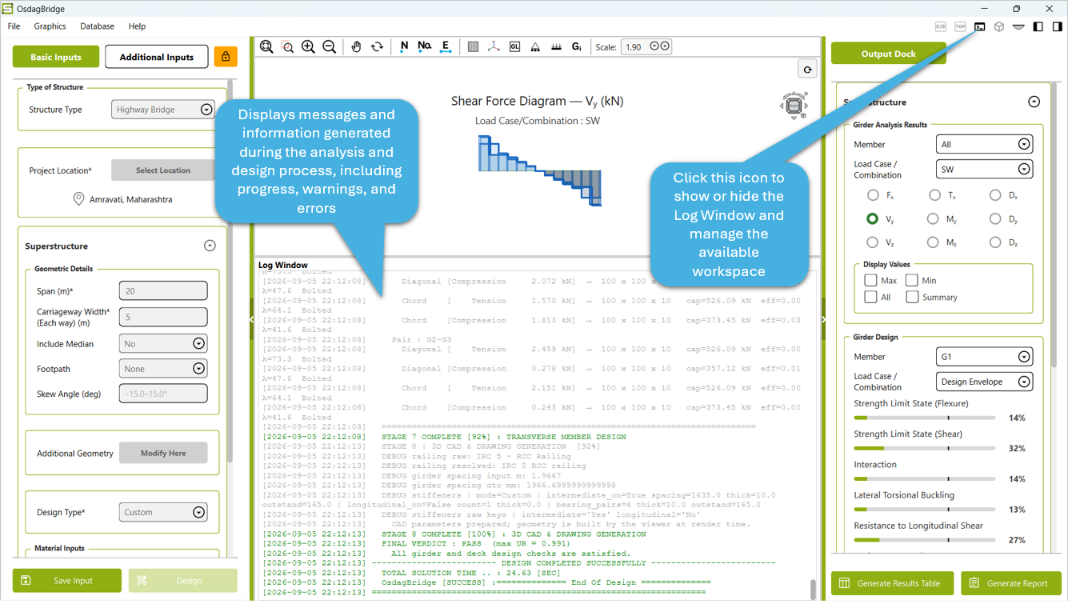
- Log Window: Displays messages and information generated during the analysis and design process.
6.2 3D CAD
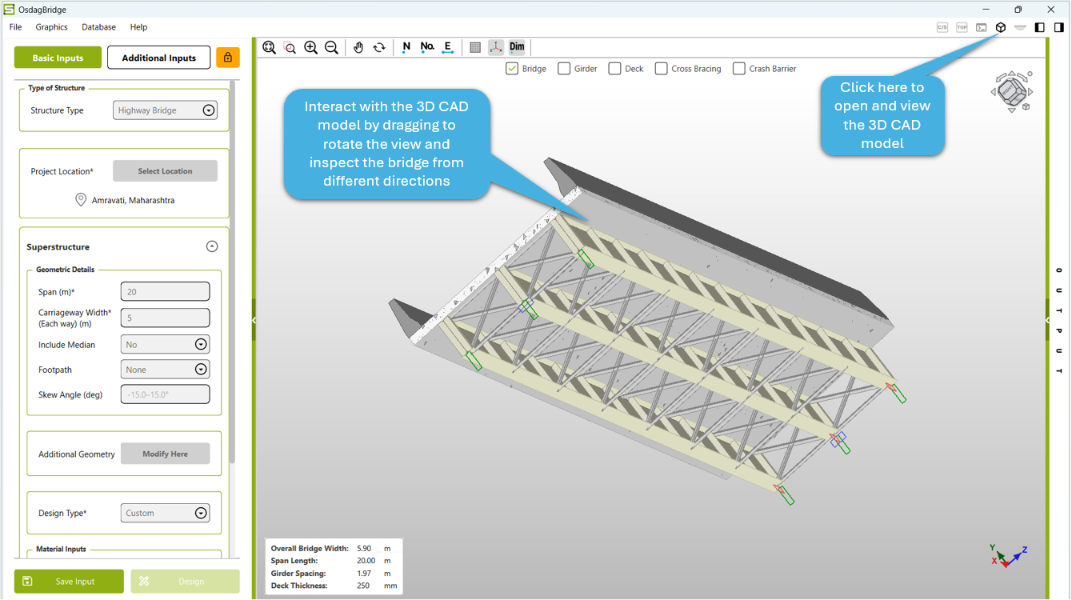
OsdagBridge provides a three-dimensional CAD representation of the bridge model after the design process is initiated. The 3D model provides a visual representation of the defined bridge configuration and its structural components.
The CAD view can be used to:
- Inspect the overall three-dimensional arrangement of the bridge.
- Visualize the major structural components and their relative positions.
- Review the model from different viewing directions.
- Verify the geometry and configuration defined through the project inputs.
The available CAD viewing and visualization controls can be used to adjust the model view as required.
6.3 Plots
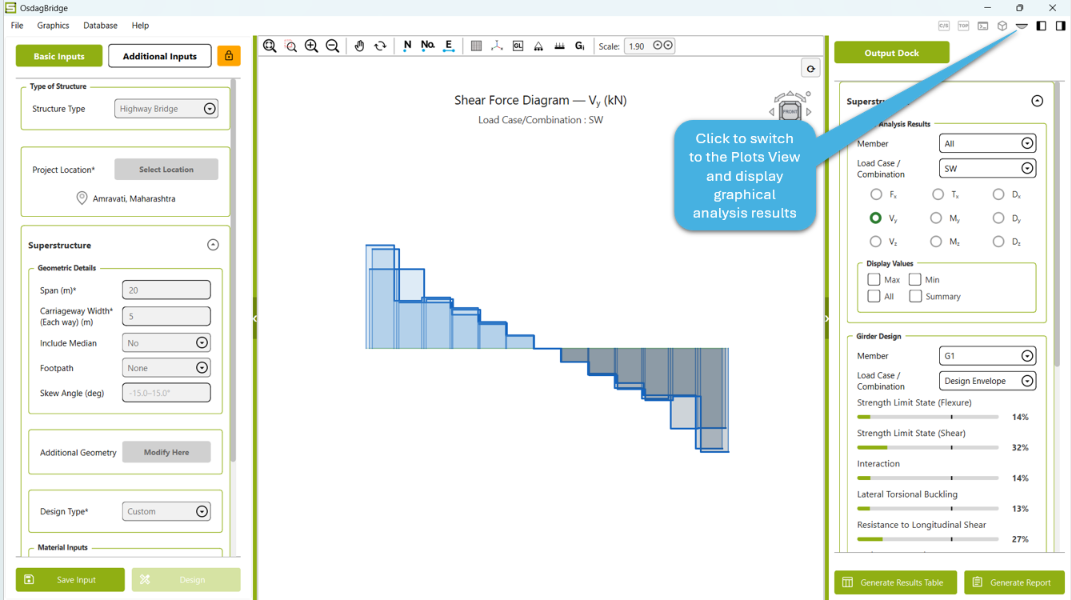
The Plots view provides a graphical representation of the analysis results. It allows users to review structural response quantities for the selected load case or load combination.
For example, the software can display a Shear Force Diagram (SFD) for the selected load case or load combination.
6.3.1 Plot View Controls
The toolbar provides several controls for inspecting and interpreting the plotted results:
- Zoom Fit: Fits the complete plot within the available viewing area.
- Zoom In: Magnifies the plot for detailed inspection.
- Zoom Out: Reduces the plot size to provide a wider view.
- Pan: Moves the plot within the viewing area.
- Rotate: Allows the 3D plot to be rotated to inspect the results from different directions.
- Node: Displays node locations in the analysis model.
- Node Number: Displays the corresponding node numbers.
- Element: Displays the elements of the analysis model.
- Grid: Toggles the grid display for better visualization of the model and plotted results.
- Axis: Displays the global coordinate axes.
- Grillage: Displays the bridge grillage model used for analysis.
- Load/Result Visualization: Provides options for displaying the relevant analysis information on the model.
- Scale: Adjusts the scale of the displayed graphical results.
- Reset View: Restores the plot to its default viewing orientation.
6.3.2 Plot Navigation
The 3D plot can be interactively inspected by rotating, zooming, and panning the view. These controls allow users to examine the variation of the plotted results along different girders and across the bridge.
The plot title indicates the type of result being displayed, along with its corresponding unit. The selected Load Case/Combination is also displayed below the plot title.
6.3.3 Bridge Grillage View
The Plots view can also display the Bridge Grillage, showing the analytical representation of the bridge. Node and girder/element labels can be enabled to help identify individual components of the analysis model.
This view can be used to inspect the analytical model and understand the location and arrangement of its structural elements before reviewing the corresponding analysis results.
6.4 Design Report
The Design Report provides a comprehensive PDF document containing the project information, input parameters, analysis results, design checks, and other relevant design details.
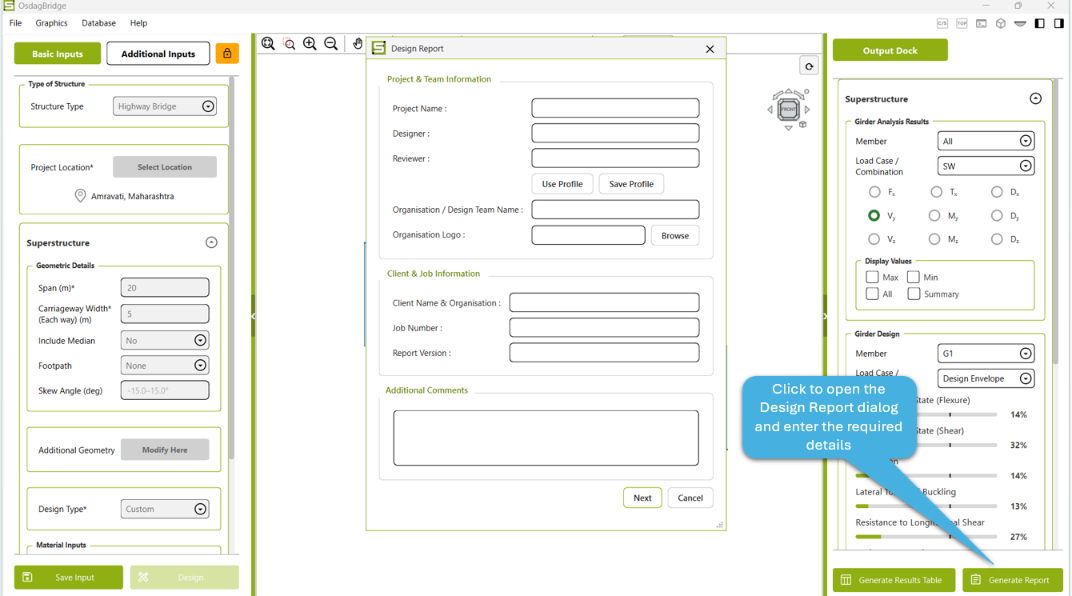
The report can be generated from the Generate Report option available in the Output Dock.
6.4.1 Enter Project and Team Information
After selecting Generate Report, the Design Report dialog allows the user to enter project and team information, including:
- Project Name
- Designer
- Reviewer
- Organisation / Design Team Name
- Organisation Logo
The Use Profile option can be used to load previously saved profile information, while Save Profile allows the entered profile details to be saved for future reports.
6.4.2 Enter Client and Job Information
The report dialog also provides fields for project identification and documentation:
- Client Name & Organisation
- Job Number
- Report Version
An Additional Comments field is available for adding any relevant notes or remarks to the report.
After entering the required information, select Next to proceed to report customization.
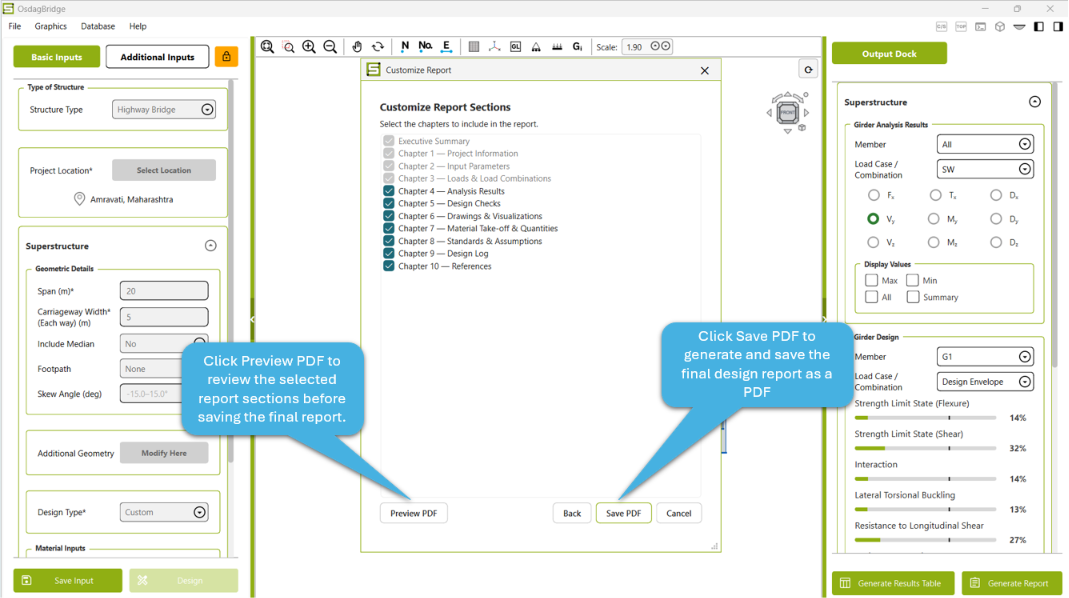
6.4.3 Customize Report Sections
The Customize Report Sections dialog allows users to select the chapters to be included in the generated report.
The available sections include:
- Executive Summary
- Chapter 4 — Analysis Results
- Chapter 5 — Design Checks
- Chapter 6 — Drawings & Visualizations
- Chapter 7 — Material Take-off & Quantities
- Chapter 8 — Standards & Assumptions
- Chapter 9 — Design Log
- Chapter 10 — References
The three chapters under Executive Summary are disabled (greyed out) and cannot be selected or removed. These chapters are mandatory and are automatically included in every generated report.
Users can select the required sections according to the intended purpose of the report.
6.4.4 Preview and Save the Report
Before saving the report, users can select Preview PDF to review the generated report.
If the report content is satisfactory, select Save PDF to generate and save the final design report.
The generated PDF contains the selected report sections along with the project and design information provided by the user.
6.4.5 Report Generation Workflow
The complete report-generation workflow is:
- Select Generate Report from the Output Dock.
- Enter the project and team information.
- Enter the client and job information.
- Add any additional comments, if required.
- Select Next.
- Select the required report sections.
- Select Preview PDF to review the report.
- Select Save PDF to generate the final report.
6.5 Log Window
The Log Window displays messages generated during the analysis and design process. It provides information about the progress and status of different stages of the design workflow and helps users monitor the execution of the analysis and design.
Information Displayed
The Log Window may contain:
- Progress messages indicating the current stage of the analysis and design process.
- Information related to model and geometry generation.
- Analysis and design status messages.
- Warning messages generated when an input value is invalid, unsuitable, or outside the applicable range.
- Messages indicating when a specified value is not appropriate for a particular design condition or component.
- Diagnostic messages related to the analysis or design process.
- Design verification and utilization information.
- The final status of the design.
- The total time taken to complete the design process.
Each log entry is accompanied by a timestamp, allowing users to track when a particular message or process was generated.
Warnings and Input Validation
The Log Window displays warning messages when the entered values do not satisfy the applicable requirements or are not suitable for the selected configuration.
For example, warnings may be generated when:
- An input value is outside the permitted or recommended range.
- A specified dimension is not suitable for the selected component.
- The applied load or other design parameter is excessively large.
- The selected combination of inputs results in an invalid or unsuitable design configuration.
These warnings help users identify and correct problematic inputs before proceeding with or interpreting the design results.
Design Status
At the end of the design process, the Log Window displays the overall design status. For a successfully completed design, it provides a confirmation that the design has been completed and indicates whether the required design checks have been satisfied.
The Log Window can therefore be used as a quick reference to verify that the analysis and design process has completed successfully and to identify any messages that may require attention.